A reason to review.
Assess possible pairings among eligible unmatched records. Inspect the suggested counterpart and its reason alongside the source entries.
Reduce repeated reconciliation work, keep outstanding items in view and bring the final position together for review. Matching, AI assistance and sign-off share the same workspace.
Explore the workflowMatch corresponding entries, group split payments and settlements, and keep amount differences visible. Explore the records and review history in this sample workspace.
Compare references, amounts, dates and names. Group matching handles split payments and settlements; reversals can be identified within each side.
Review candidate records, confidence and reasons before confirming or rejecting. Matching does not remove an unexplained amount difference.
Help with matching, unfamiliar files, open items and close commentary. Your team’s policies and review guide the work.
Assess possible pairings among eligible unmatched records. Inspect the suggested counterpart and its reason alongside the source entries.
Explore possible counterparts, grouped amounts, charges, duplicates, reversals and timing differences within your imported records. Brillrec’s checks find patterns; AI can summarise them for your assessment.
Ask AI to suggest the columns in an unfamiliar file. Suggestions are checked against file values; review the mapping and preview before continuing.
Draft period commentary and a sign-off memo from the reconciliation figures. Check, edit and save the text for inclusion in the sign-off pack.
Compare both sides and check the proposed reason. A suggested explanation is a starting point for review; your team establishes the cause and decides how to treat a difference.
Your organisation chooses whether external AI is used and the review mode. Matching and approval settings govern eligible actions, while commentary and file mappings remain drafts for your team to check.
Open-item checks also work without external AI. Discuss data handling and provider requirements with us during evaluation.
Explore AI settings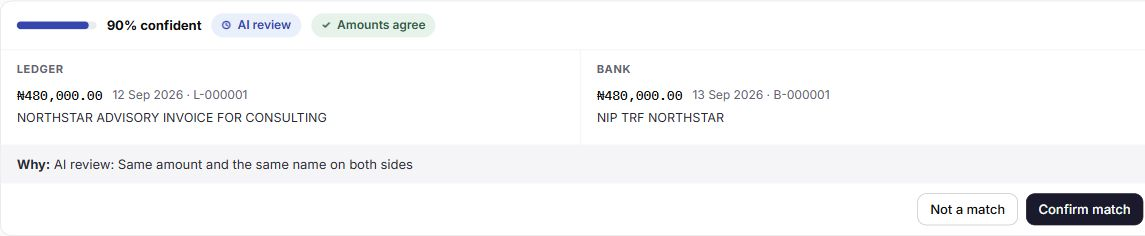
Fictional records and illustrative AI output.
Build on decisions your team has reviewed. Reuse familiar name links, prioritise suggestions using past decisions and review proposed rules for recurring differences.
A qualifying manual match can propose a name link. Your administrator accepts it before it is reused, with amount and date checks still applying.
Use CSV, Excel and PDF statement imports, or configured accounting, bank, SFTP and API sources. Review the interpretation and save layouts for repeat imports. AI can suggest unfamiliar column mappings, and connected sources can be reloaded to pick up late or backdated entries.
Explore source connectionsAccount policies define confidence, amount limits and allowable differences for automatic matching. Choose whether AI review suggestions are eligible. Remaining differences still require an explanation.
Configured rules can handle recurring explanations. Daily checks are available for accounts with connected accounting and bank feeds. Open items carry into the latest period and stay in step with earlier periods as work progresses.
Accepted name links connect familiar customer names with bank narrations. Repeated explanations of similar charges or entries can propose difference rules for review. Confirmations and rejections help order future suggestions, and previously rejected pairings are remembered.
Approved learning stays within your organisation, with accepted links providing reusable context for future matching.
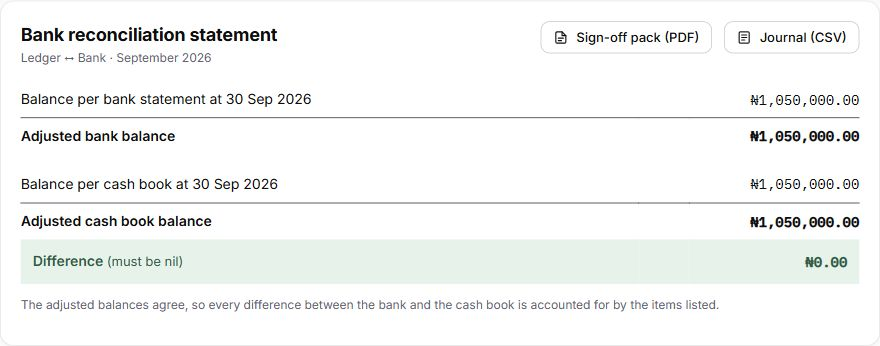
Review source balances, outstanding items and the explanations behind adjustments. Prepare commentary and bring the supporting schedules together for the person reviewing the close.
View the preparer and approver history ↗
Complete required approvals and review the statement before signing off. Outstanding items remain visible; whether they may remain at sign-off depends on your organisation’s policy and any required explanation.
Evaluate separate preparation, approval and reopening responsibilities for your team’s operating setup.
A bank charge absent from the cashbook remains an amount difference. Open-item assistance can identify possible counterparts or charge patterns, but your team checks the evidence, records the explanation and decides the appropriate treatment.
Inspect the financial position and the records supporting it: bank statements, settlement comparisons, investment schedules and client-money statements.
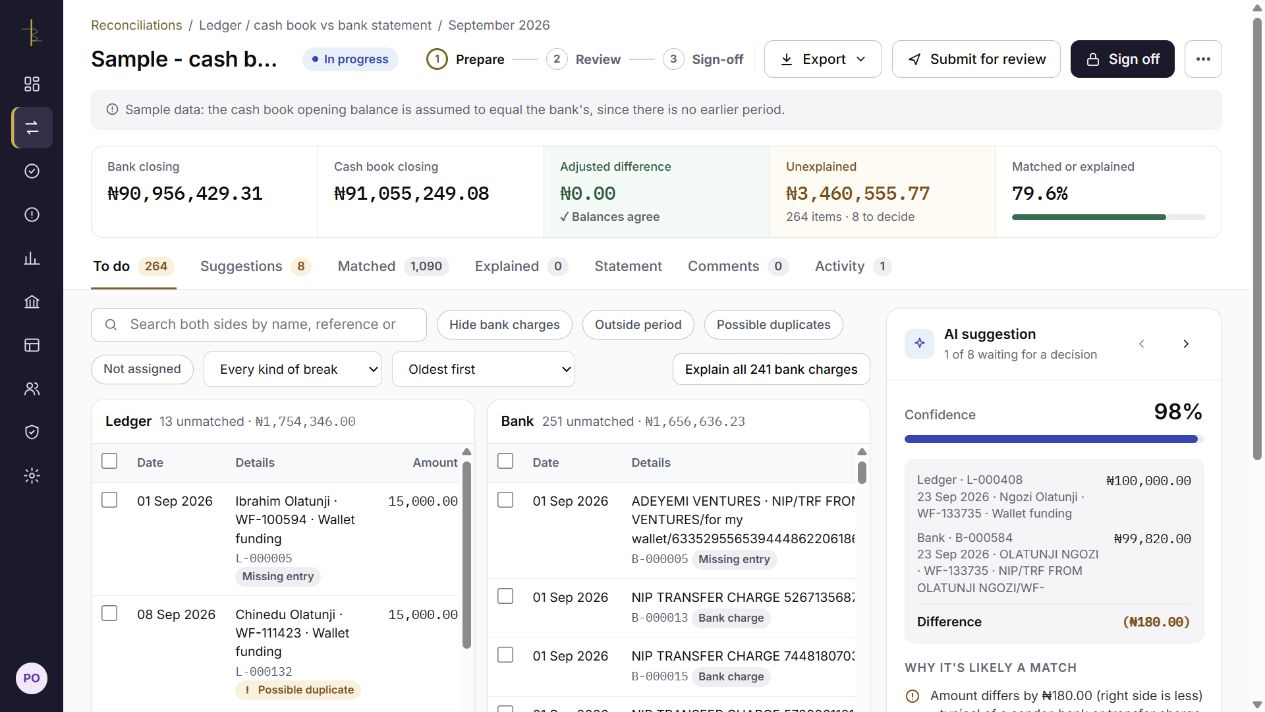
Application screenshots use fictional records. AI responses shown are illustrative.
Review adjusted bank balances, settlement records and investment comparisons. Client-money statements show the requirement, resources held and surplus or shortfall.
Explore client money ↗Bring statements, supporting schedules and saved commentary into a PDF pack. Keep outstanding items and the decisions behind the close visible.
Use Excel working papers for reconciliation detail and balanced journal CSV exports with configured ledger codes. Export client-money statements as PDF or CSV.
Prepare your evaluation ↗Evaluate a representative workflow: bring in your records, inspect the matching and outstanding items, then review the resulting statement and evidence.